Install free trial

Your Trello boards, live in Google Sheets

Pick a board, and every card lands in a spreadsheet with lists, labels, members, due dates, checklists and custom fields. It stays updated automatically, with no CSV exports and no Trello Premium.

Add to Google Sheets

7-day free trial · no credit card · works with Trello Free, Standard and Premium
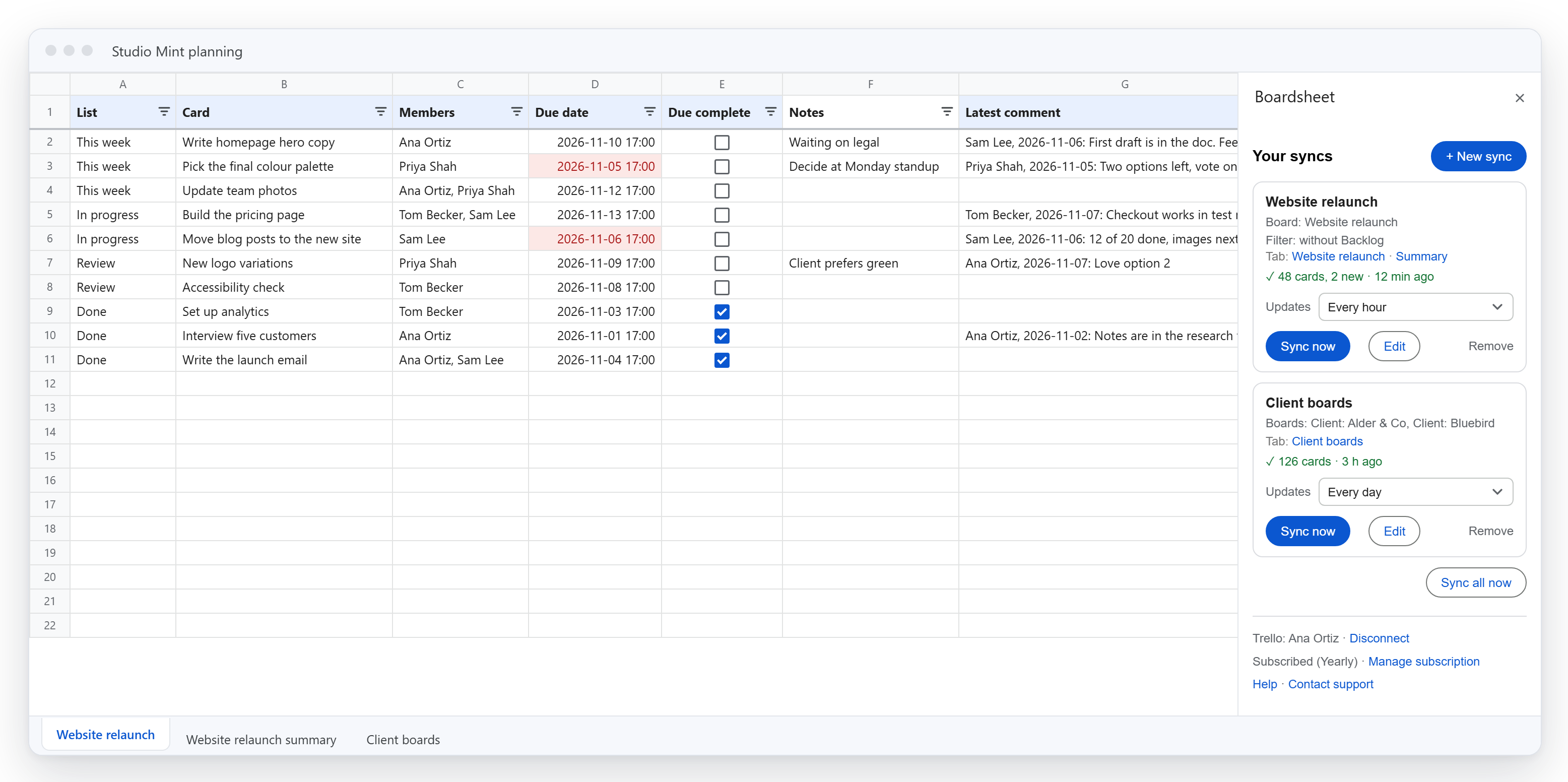
A Trello board synced into a Google Sheets tab: lists, cards, people and due dates, overdue dates in red, done cards ticked, the latest comment on each card, a Notes column the team added, and the Boardsheet sidebar on the right.

Why teams use Boardsheet

No Premium needed

Trello only lets Premium workspaces export to CSV. Boardsheet gets your cards into Sheets on any plan.

Always current

Sync on demand, every hour, or every day. Scheduled syncs run even when the spreadsheet is closed.

Your notes stay put

Add your own columns, notes and formulas next to the synced data. Each row stays attached to its card on every sync.

A summary that writes itself

An optional summary tab counts open cards by list, person and label, and shows what's overdue.

Only the cards you want

Leave out lists like "Done", or keep only cards with the labels you pick.

Checklists and comments

Every checklist item, and the latest comment or the whole thread, right in the card's row.

Many boards, one tab

Combine up to 25 boards into one report, with a Board column for filtering and pivot tables.

Custom fields included

Dropdown, number, date, checkbox and text fields each get their own typed column.

Private by design

Card data goes straight from Trello into your sheet inside your own Google account. It never passes through our servers.

See where every board stands

The summary tab adds up your open cards by list, person and label, with overdue and due-this-week counts. It's rewritten on every sync, so it's never out of date.
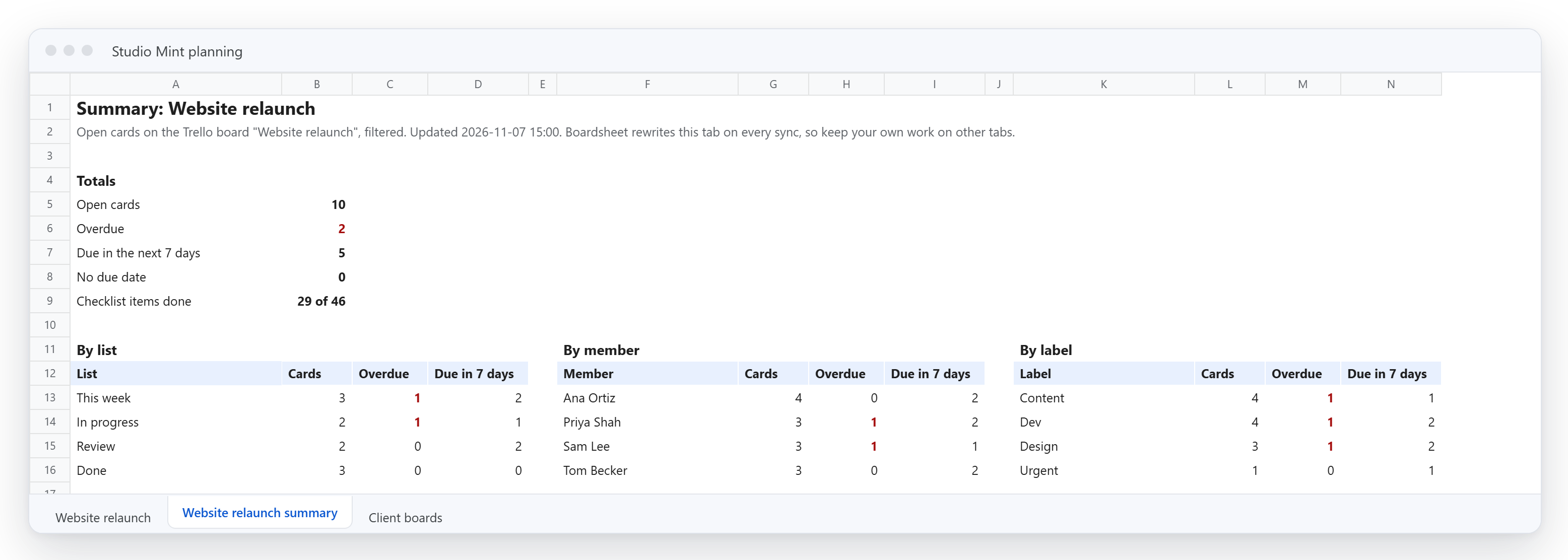
The summary tab: totals for open, overdue and due-soon cards and checklist items done, then open cards by list, by member and by label, with overdue counts in red.

Pick exactly what you need

Choose boards, columns and how often to update, all from a sidebar inside Google Sheets.
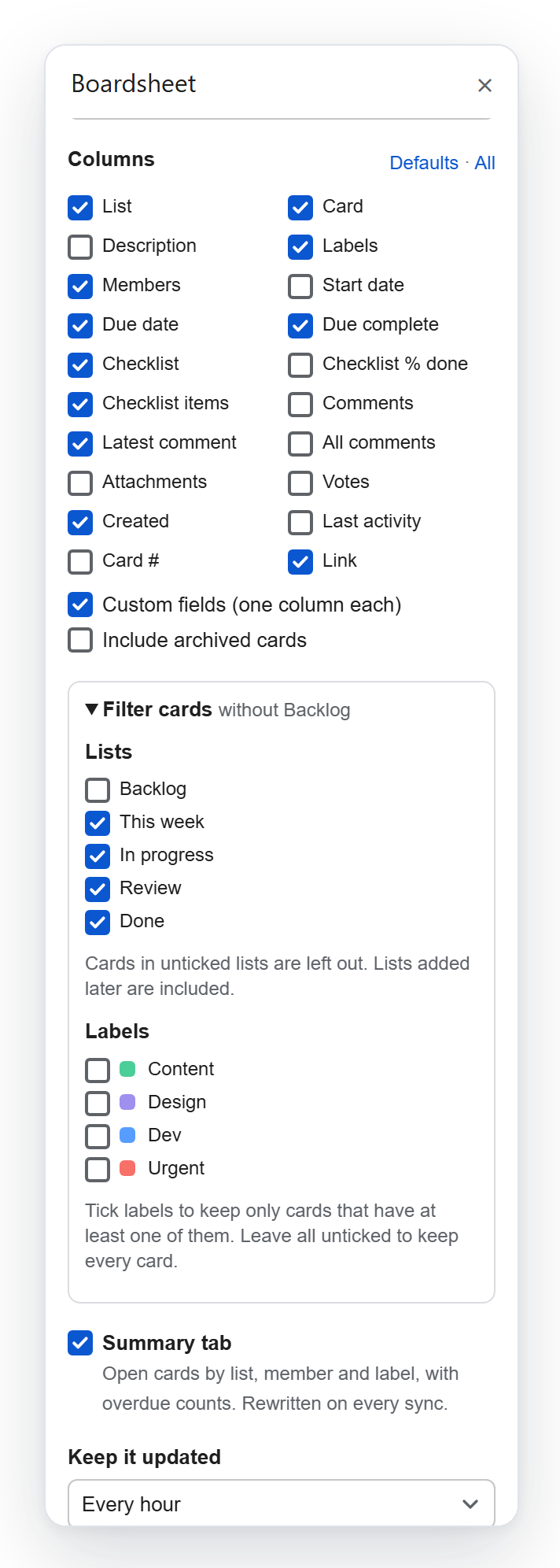
  • Columns for everything on a card, from labels and due dates to checklist items and comments
  • Leave out lists, or keep only cards with certain labels
  • Updates every hour or every day, even with the spreadsheet closed
  • Read-only: nothing ever changes in Trello
The Boardsheet sidebar's sync settings: column checkboxes, a card filter leaving out the Backlog list, the summary tab option and an hourly schedule.

Set up in two minutes

Install

Add Boardsheet from the Google Workspace Marketplace, then open it from Extensions in any spreadsheet.

Connect Trello

Approve read-only access in a Trello pop-up. Boardsheet never changes your boards.

Pick boards

Choose boards, columns and a schedule. Your tab fills in within seconds.

Simple pricing

Monthly

$9/month
  • Unlimited boards and tabs
  • Hourly and daily schedules
  • Summary tab, filters, checklists and comments
  • Custom fields and archived cards
  • Email support

Yearly

$90/year
  • Everything in Monthly
  • 2 months free

Price per Google account. Teammates can view and edit the synced sheet for free. 7-day free trial, cancel anytime, 30-day money-back guarantee.

Questions

Do I need Trello Premium?
No. It works on every Trello plan, including Free. Trello's own CSV export needs Premium.
Does it change anything in Trello?
No. Boardsheet asks Trello for read-only access.
What happens to columns I add?
They're kept. Synced columns are found by their header names and rows by their Card ID, so you can add columns, notes, formulas and filters, and rearrange the synced columns.
Can I sync archived cards?
Yes, turn on "Include archived cards" and an Archived column is added.
What happens when a card is archived, or filtered out?
Its row is removed on the next sync, along with anything typed next to it in that row. To keep archived cards in the tab, turn on "Include archived cards".
How do I cancel?
Click Manage subscription at the bottom of the sidebar. Your tabs stay in your spreadsheet; they just stop updating.
Where is my data stored?
Your Trello access token is stored in your Google account's private add-on storage. Card data is fetched by the add-on running in your Google account and written straight into your spreadsheet. Our server only knows your email address and subscription status. See the privacy policy.
Who pays when several people use the spreadsheet?
Only people who create or run syncs need a subscription. Anyone can read and edit the spreadsheet as usual.